
Setting up native Flutter HarmonyOS app development on HarmonyOS computers
Step-by-Step Guide to Setting Up the Flutter Toolchain on HarmonyOS computers


Setting Up the Flutter Toolchain on HarmonyOS Using HiSH
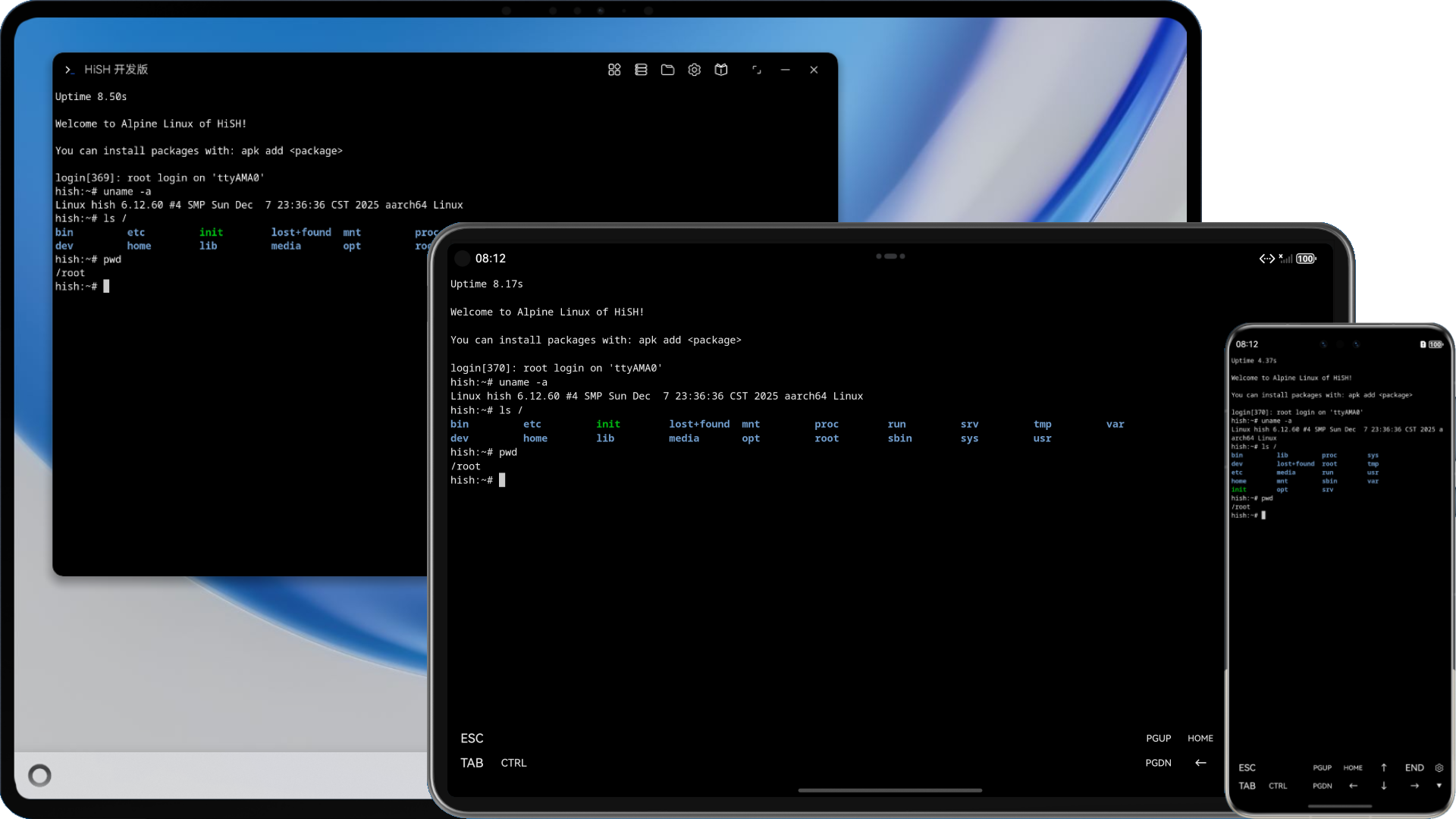
This guide provides a complete, step-by-step walkthrough for setting up a native Flutter development environment for OpenHarmony on a HarmonyOS PC, tablet, or even a phone. By following these instructions, you will be able to build and run Flutter applications directly on your HarmonyOS device without needing a separate macOS, Windows, or Linux machine. The key enabler is HiSH, a Linux emulator and shell tool specifically designed for HarmonyOS that allows you to run a complete Linux environment, transforming your device into a portable Linux development terminal.
The Unix-like Philosophy on HarmonyOS with HiSH
The approach described here adheres to the classic “Unix-ish principles” you referenced, similar to how toolchains operate on macOS and Linux. HiSH provides a full arm64 Linux kernel and a choice of userland environments (Alpine Linux, Ubuntu 24.04, or Debian 12) on top of HarmonyOS. This creates a stable, Linux-based command-line interface where you can execute standard tools like git, bash, curl, and most importantly, the Flutter SDK. While HarmonyOS has its own native terminal (HiShell), it lacks the complete Linux userspace required by the Flutter toolchain. HiSH fills this gap entirely, making your HarmonyOS device a first-class development host.
Step-by-Step Guide to Setting Up the Flutter Toolchain on HarmonyOS
This process breaks down into four logical phases: installing HiSH and the necessary IDEs, configuring the Linux environment inside HiSH, creating or migrating your Flutter project, and finally signing and deploying your app.
Phase 1: Environment Preparation (The Foundation)
Before any code is written, you must install the three core components that form the foundation of your development environment.
Step 1.1: Install HiSH (The Linux Environment)
HiSH is the non-negotiable core of this setup. It is a Linux emulator and shell tool specifically designed for HarmonyOS. Based on qemu-ohos, it supports both 2-in-1 PCs, tablets, and phones.
Action: You have three options to obtain HiSH:
Easiest: Install it directly from the AppGallery (note that this version does not support JIT, so it runs slower).
Recommended for Developers: Download the HAP file from the HiSH Releases page, sign it yourself (using DevEco Studio’s signing tool), and then install it with hap_installer or deployment through DevEco Studio IDE itself. This version supports JIT and runs much faster.
From Source: Clone the HiSH repository and build it in DevEco Studio for the maximum level of customization.
Why HiSH: The OpenHarmony-SIG Flutter SDK relies on a toolchain designed for Unix-like systems. HiSH fulfills this dependency by providing a complete, virtualized Linux kernel and root filesystem with networking, port forwarding, and a shared folder for easy file exchange between HarmonyOS and the Linux environment.
Step 1.2: Install DevEco Studio (The Native IDE & SDK Manager)
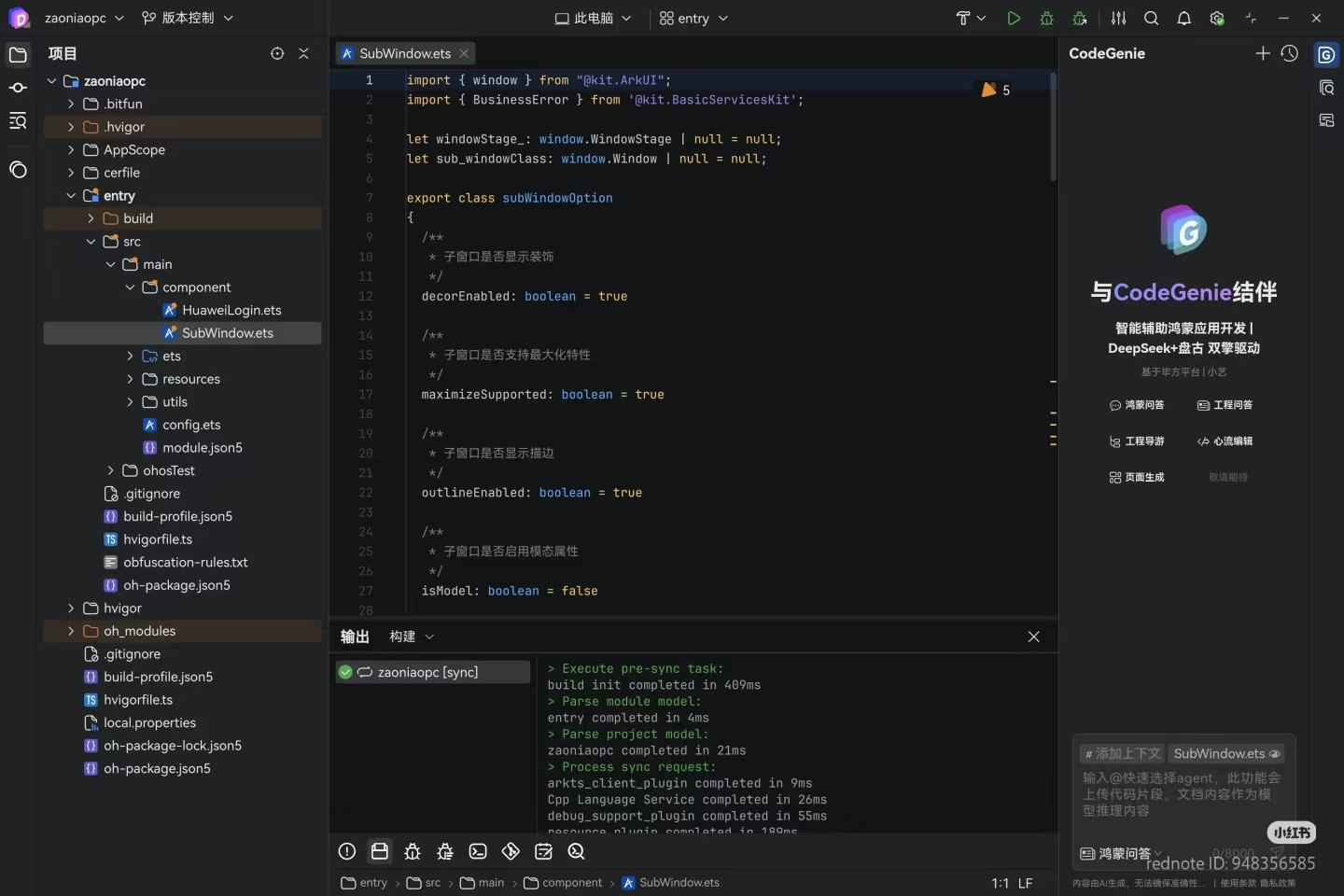
DevEco Studio is the Rust-based, native IDE for HarmonyOS. It is not a JetBrains product but a custom, high-performance environment written in Rust and using Huawei’s in-house Bifeng framework.
Action: Download and install DevEco Studio from the official Huawei developer website.
Why: DevEco Studio serves two critical functions in this workflow:
It manages the OpenHarmony/HarmonyOS SDK, which contains the native tools (
hdc,ohpm,hvigor) needed to build and deploy apps.It handles the final signing and deployment of the
.hap(HarmonyOS Ability Package) file to your device. It also provides the “Auto-Signing” feature to generate security certificates.
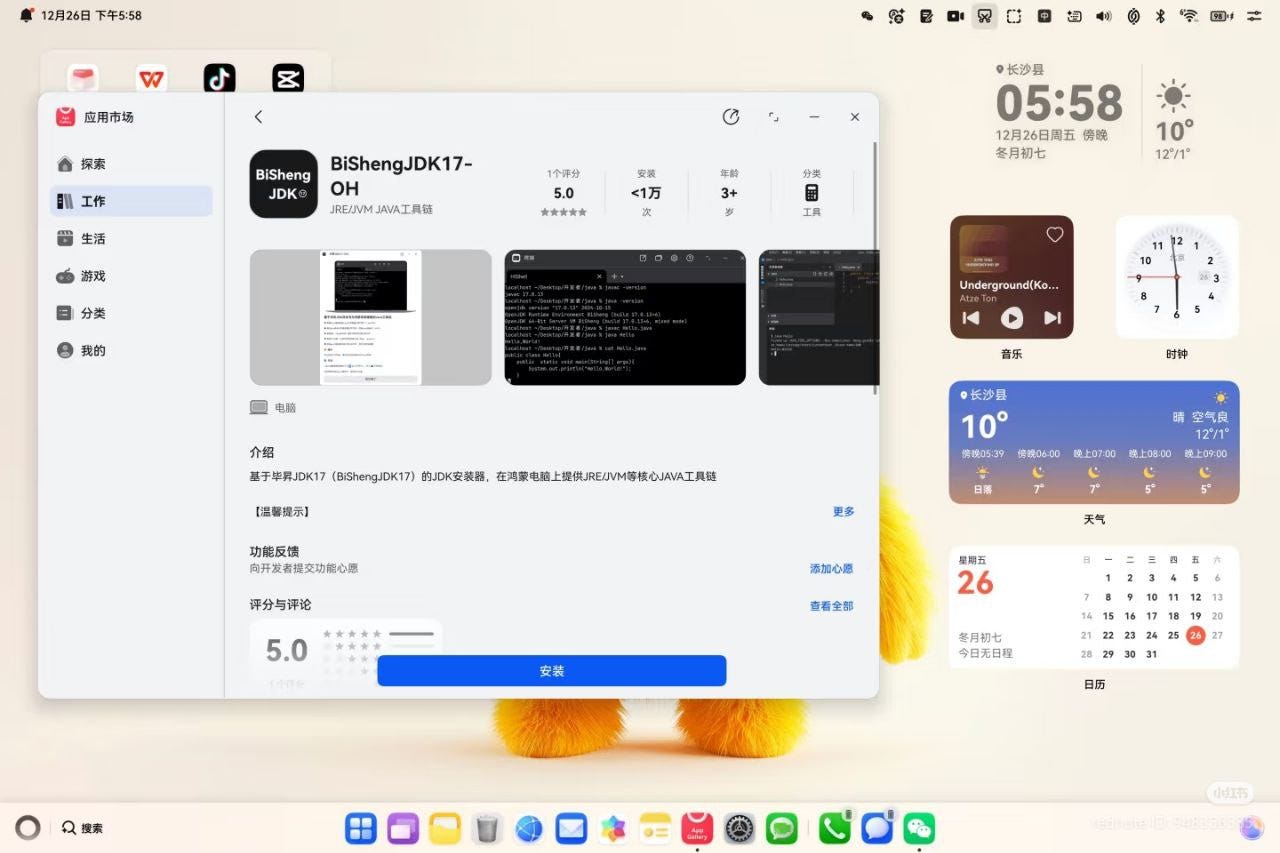
Step 1.3: Install BiSheng JDK 17 (The Missing Link)
Flutter’s internal tools require a Java runtime to function. On HarmonyOS, this is provided by the BiSheng JDK.
Action: Install BiSheng JDK 17-OH from the AppGallery. This process will automatically register the Java environment with the system’s toolchain configurations, linking it to both CodeArts IDE and DevEco Studio.
Critical Note: Without this specific JDK, the
fluttercommand will fail inside HiSH because it cannot find a valid Java runtime.
Phase 2: SDK and Environment Configuration (Inside HiSH)
With the core apps installed, you now launch HiSH and configure the Linux environment to recognize the Flutter SDK and the BiSheng JDK.
Step 2.1: Launch HiSH and Set Up the Shared Folder
Open the HiSH app on your HarmonyOS device. Once the Linux kernel boots and you are presented with a shell prompt (likely from the included Alpine Linux rootfs), you need to identify the shared folder. This folder is a bidirectional bridge: files placed here are visible both in HarmonyOS and inside the HiSH Linux environment.
Action: HiSH typically creates a shared directory. You can find its location by looking for a mounted directory (often
/mnt/sharedor similar) or by checking the HiSH documentation. Place all your development projects in this shared folder so you can access them from both HiSH (for command-line builds) and DevEco Studio (for signing and deployment).
Step 2.2: Install Necessary Linux Packages
Inside the HiSH terminal, update the package manager and install git and curl, as the Alpine Linux rootfs is very minimal.
Action: Run the following commands in the HiSH terminal:
bash
apk update
apk add git curl bash
Step 2.3: Clone the OpenHarmony Flutter SDK
Now, clone the specific branch of the Flutter SDK for OpenHarmony directly into your shared folder.
Action: Navigate to your shared folder (e.g.,
cd /mnt/shared) and run the following command to get the current stable version (3.27.x branch):bash
git clone -b br_3.27.4-ohos-1.0.4 https://gitcode.com/openharmony-tpc/flutter_flutter.gitStep 2.4: Configure Environment Variables for the Linux Shell
You must tell the system inside HiSH where to find the Flutter and BiSheng JDK binaries. Since the BiSheng JDK is installed on the HarmonyOS host, you will need to locate its installation path from within HiSH. It is often accessible through the shared folder or a specific mount point. For this guide, we assume you have copied or linked the JDK into a path inside HiSH, for example, /home/openharmony/libs/bisheng-jdk17-oh.
Action: Edit the
.bashrcfile in your HiSH Linux environment (or run these commands directly in the session) to set the necessary paths. Usenano ~/.bashrcifnanois installed, orvi ~/.bashrc.
Add the following lines, adjusting the paths to match your actual directories inside HiSH:bash
# Flutter OH SDK Path
export FLUTTER_HOME=/mnt/shared/flutter_flutter
export PATH=”$FLUTTER_HOME/bin:$PATH”

# BiSheng JDK 17 Path (inside the HiSH Linux environment)
export JAVA_HOME=/home/openharmony/libs/bisheng-jdk17-oh
export PATH=”$JAVA_HOME/bin:$PATH”

# Optional but recommended: Use Chinese mirrors for faster package downloads
export FLUTTER_STORAGE_BASE_URL=https://storage.flutter-io.cn
export PUB_HOSTED_URL=https://pub.flutter-io.cn
Load the configuration: Run
source ~/.bashrcto apply the changes.
Step 2.5: Link BiSheng JDK to the Flutter Toolchain
This is the most important command. You must explicitly tell the Flutter toolchain where to find the BiSheng JDK.
Action: In the HiSH terminal, run the following command:
bash
flutter config --jdk-dir=$JAVA_HOMEStep 2.6: Verify Your Setup Inside HiSH
Run the verification command to ensure everything is correctly configured within the Linux emulator.
Action: Execute
flutter doctor -vin the HiSH terminal.Expected Outcome: You should see a green checkmark next to the Java binary path, confirming it is using the BiSheng version. The output should also indicate that the OpenHarmony toolchain is available. You might see warnings about other platforms (Android, iOS), but the key is to see no errors for the OpenHarmony environment.
Phase 3: Project Creation and Migration (The Code)
Your Linux environment (HiSH) is now ready. You can create a new Flutter project or bring in an existing codebase.
Step 3.1: Generate the Project “Bridge” Inside HiSH
The Flutter toolchain needs to create the native HarmonyOS project files (the ohos folder) that DevEco Studio understands.
Action: Navigate to your desired project directory inside the shared folder (e.g.,
cd /mnt/shared/my_flutter_app) in the HiSH terminal. Then run:bash
flutter create --platforms ohos .This command generates the
ohosfolder, which acts as a native wrapper for your Flutter code. Critically, this folder is generated inside the shared folder, making it immediately visible to the HarmonyOS file system and DevEco Studio.
Step 3.2: Import Your Existing Flutter Code (Optional)
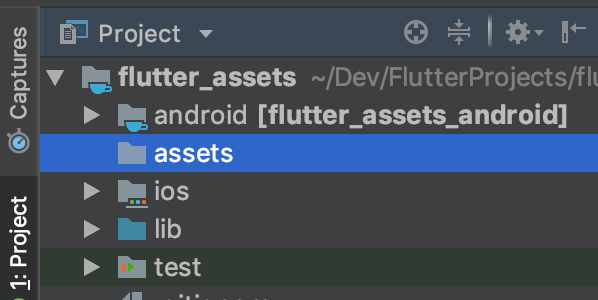
If you have an existing Flutter project, you can easily migrate it to your HarmonyOS environment.
Copy your code: Using the HarmonyOS file manager or the command line inside HiSH, copy your existing
lib/folder,assets/folder, andpubspec.yamlfile into the root of the project you just initialized (the one containing theohosfolder).Merge dependencies: Open your
pubspec.yamlfile and ensure any OpenHarmony-specific plugins (e.g.,flutter_ohos) are added. You may need to add specificgitdependencies for plugins that support OpenHarmony.Resolve dependencies: Run
flutter pub getin the HiSH terminal, inside your project directory. This downloads your packages and updates the bridge files inside theohosfolder to point to your existing Dart logic.
Phase 4: Signing, Building, and Deployment (Using DevEco Studio)
This phase uses the native DevEco Studio IDE on HarmonyOS to handle the final signing and deployment. Because your project exists in the shared folder, both HiSH and DevEco Studio can access it seamlessly.
Step 4.1: Import the Project into DevEco Studio
Action: Open DevEco Studio on your HarmonyOS PC. Choose “Open Project” and navigate to the
ohossub-folder inside your Flutter project’s root directory (the one you just created in the shared folder). Click “Open”.
Step 4.2: Perform the “Auto-Signing” Handshake
For the app to run on a real device (your HarmonyOS PC itself counts as a device), it must be signed with a digital certificate.
Action: In DevEco Studio:
Go to
File > Project Structure > Project > Signing Configs.Check the box for “Automatically Generate Signature”.
Log in with your Huawei Developer account when prompted.
Click “Apply” and then “OK”.
How it works: The Rust-based IDE will securely communicate with the HarmonyOS kernel to generate the necessary security certificates and profile for your app.
Step 4.3: Build and Run Your Flutter App
You are now ready to see your app in action on your HarmonyOS device.
Action: In DevEco Studio, click the green “Run” button. Alternatively, you can run the
flutter runcommand inside your project directory in the HiSH terminal.The Complete Process Explained:
Compilation: If you click “Run” in DevEco Studio, it will invoke the Flutter toolchain. That toolchain, running inside the HiSH Linux environment, uses the BiSheng JDK to compile your Dart code and build a
.hap(HarmonyOS Ability Package) file.Detection & Signing: DevEco Studio detects the newly built
.hapfile in the shared project folder. It then applies the auto-generated signature profile to the package.Deployment & Execution: Finally, DevEco Studio uses the HarmonyOS
hdctool to push the signed.hapfile to your connected HarmonyOS PC (or a phone/tablet) and launches the app.
How the Components Work Together in Your Daily Workflow
For a smooth development experience, you will use different tools for different tasks, just as you would on a traditional OS:
CodeArts IDE (Your Daily Driver for Coding): This is a lightweight, cloud-native inspired IDE (similar to VS Code). You can use it for the “heavy lifting” of writing all your Dart code, managing your project’s folder structure, and editing your UI logic. Since your project lives in the shared folder, CodeArts can open and edit it directly.
DevEco Studio (The Deployment & Signing Specialist): You will primarily use this IDE for two specific tasks: generating the app’s security signature (once per project) and clicking the “Run” button to deploy the app to your devices. You don’t need to write code inside it.
HiSH (The Linux Build Environment): This is where you run all Flutter command-line operations:
flutter pub getto fetch dependencies,flutter build hapto create a release package, and evenflutter runif you prefer the terminal. HiSH provides the essential Unix-like CLI and the complete Linux kernel that the Flutter toolchain requires.BiSheng JDK (The Build Engine): This is the essential Java runtime that powers Flutter’s internal build tools, and it must be correctly linked via
flutter config --jdk-dir.
By following this corrected guide, you establish a self-contained, native development environment for Flutter on OpenHarmony using HiSH. You can now develop, build, and deploy Flutter applications entirely from your HarmonyOS PC, tablet, or phone, without needing a secondary machine or a virtual machine. This is true native development, following the classic Unix philosophy, on a modern, non-Linux operating system.